Showing posts with label SNMP. Show all posts

Saturday, February 22, 2020

How to configure SNMPv3 on Cisco IOS Router

SNMPv3 is similar to SNMPv1 or SNMPv2 but has a completely different security model. SNMPv1 and SNMPv2 use a community-string that is used as the password and there’s no authentication or encryption.
SNMPv3 is able to use both authentication and encryption and has a new security model that works with users, groups and 3 different security levels. Users will be applied to a group and access policies will be applied to a group so that you can determine what groups have read or read-write access and which MIBs (Management Information Bases) they should be able to access.

Security Levels

SNMP offers 3 different security levels:
  • noAuthNoPriv
  • AuthNoPriv
  • AuthPriv
Auth stands for Authentication and Priv for Privacy (encryption).
  • noAuthNoPriv = username authentication and no encryption.
  • AuthNoPriv = MD5 or SHA authentication but no encryption.
  • AuthPriv = MD5 or SHA authentication AND encryption.
SNMPv1 and SNMPv2 only support noAuthNoPriv since they don’t offer any authentication or encryption. SNMPv3 supports any of the three security levels. When you decide to use noAuthNoPriv for SNMPv3 then the username will replace the community-string.
The community-string for SNMPv1 and SNMPv2 is send in clear-text. SNMPv3 is far more secure because it doesn’t send the user passwords in clear-text but uses MD5 or SHA1 hash-based authentication, encryption is done using DES, 3DES or AES.
Let’s take a look at a simple SNMPv3 configuration example on a Cisco IOS router.

Configuration Example

First we’ll create a new group and select a security model:
R1(config)#snmp-server group MYGROUP ?
  v1   group using the v1 security model
  v2c  group using the v2c security model
  v3   group using the User Security Model (SNMPv3)
We’ll call our group “MYGROUP” and of course we will select SNMPv3 as the security model. Next step is to select the security level:
R1(config)#snmp-server group MYGROUP v3 ?
  auth    group using the authNoPriv Security Level
  noauth  group using the noAuthNoPriv Security Level
  priv    group using SNMPv3 authPriv security level
By using the priv parameter we will select the AuthPriv security level. There are a number of options for security levels:
R1(config)#snmp-server group MYGROUP v3 priv ?
  access   specify an access-list associated with this group
  context  specify a context to associate these views for the group
  match    context name match criteria
  notify   specify a notify view for the group
  read     specify a read view for the group
  write    specify a write view for the group
  <cr>
The first item is the access-list, you can use this to select what IP addresses or subnets should be permitted for users. Optionally you can select certain views:
  • If you don’t specify a read view then all MIB objects are accessible. Use this if you want to limit the number of MIBs that your NMS (Network Management Software) can monitor.
  • Without a write view then nothing is writable, you will have read-only access.
  • The notify view is used to send notifications to members of the group. If you don’t specify any then it will be disabled by default.
To keep this example simple we won’t use any views for now, this means that we’ll have full read access to all MIBs:
R1(config)#snmp-server group MYGROUP v3 priv
The next step is to create a user account:
R1(config)#snmp-server user MYUSER MYGROUP v3 auth md5 MYPASS123 priv aes 128 MYKEY123 

Configuring snmpv3 USM user, persisting snmpEngineBoots. Please Wait...
We’ll create a new user called “MYUSER” and assign it to the “MYGROUP” group. We use SNMPv3 as the security model and use MD5 for authentication. This user will use “MYPASS123” as the password. Encryption is done using AES 128-bit and the encryption key is “MYKEY123”.
This router is now SNMPv3 enabled and we can monitor it using SNMPv3 from a NMS. Let’s try if we can get access…

Verification

User accounts are not stored in the configuration, take a look below:
R1#show running-config | incl snmp
snmp-server group MYGROUP v3 priv
Above you only see the group configuration, user accounts can be found with another command:
R1#show snmp user                 

User name: MYUSER
Engine ID: 800000090300C200128F0000
storage-type: nonvolatile  active
Authentication Protocol: MD5
Privacy Protocol: AES128
Group-name: MYGROUP
Here you can see the username, security options and to which group the user belongs. We can also check the group configuration:
R1#show snmp group 
groupname: ILMI                             security model:v1 
readview : *ilmi                            writeview: *ilmi                           
notifyview: <no notifyview specified>       
row status: active

groupname: ILMI                             security model:v2c 
readview : *ilmi                            writeview: *ilmi                           
notifyview: <no notifyview specified>       
row status: active

groupname: MYGROUP                          security model:v3 priv 
readview : v1default                        writeview: <no writeview specified>        
notifyview: <no notifyview specified>       
row status: active
Above you can see that we have our group called “MYGROUP” and that we use the default read view. If you are a Linux user you can use the excellent snmpwalk command-line utility that tests if your router can be accessed using SNMP. It works for SNMPv1, v2 and v3:
rene@linux ~ $ snmpwalk -v3 -u MYUSER -l AuthPriv -a md5 -A MYPASS123 -x aes -X MYKEY123 192.168.82.138
iso.3.6.1.2.1.1.1.0 = STRING: "Cisco IOS Software, 2800 Software (C2800NM-ADVIPSERVICESK9-M), Version 12.4(24)T8, RELEASE SOFTWARE (fc1)
Technical Support: http://www.cisco.com/techsupport
Copyright (c) 1986-2012 by Cisco Systems, Inc.
Compiled Sun 09-Sep-12 04:01 by prod_rel_team"
iso.3.6.1.2.1.1.2.0 = OID: iso.3.6.1.4.1.9.1.576
iso.3.6.1.2.1.1.3.0 = Timeticks: (27513) 0:04:35.13
iso.3.6.1.2.1.1.4.0 = ""
iso.3.6.1.2.1.1.5.0 = STRING: "R1.rmcs.local"
iso.3.6.1.2.1.1.6.0 = ""
iso.3.6.1.2.1.1.7.0 = INTEGER: 78
iso.3.6.1.2.1.1.8.0 = Timeticks: (0) 0:00:00.00
iso.3.6.1.2.1.1.9.1.2.1 = OID: iso.3.6.1.4.1.9.7.129
iso.3.6.1.2.1.1.9.1.2.2 = OID: iso.3.6.1.4.1.9.7.115
iso.3.6.1.2.1.1.9.1.2.3 = OID: iso.3.6.1.4.1.9.7.265
iso.3.6.1.2.1.1.9.1.2.4 = OID: iso.3.6.1.4.1.9.7.112
iso.3.6.1.2.1.1.9.1.2.5 = OID: iso.3.6.1.4.1.9.7.106
iso.3.6.1.2.1.1.9.1.2.6 = OID: iso.3.6.1.4.1.9.7.47
[output omitted]
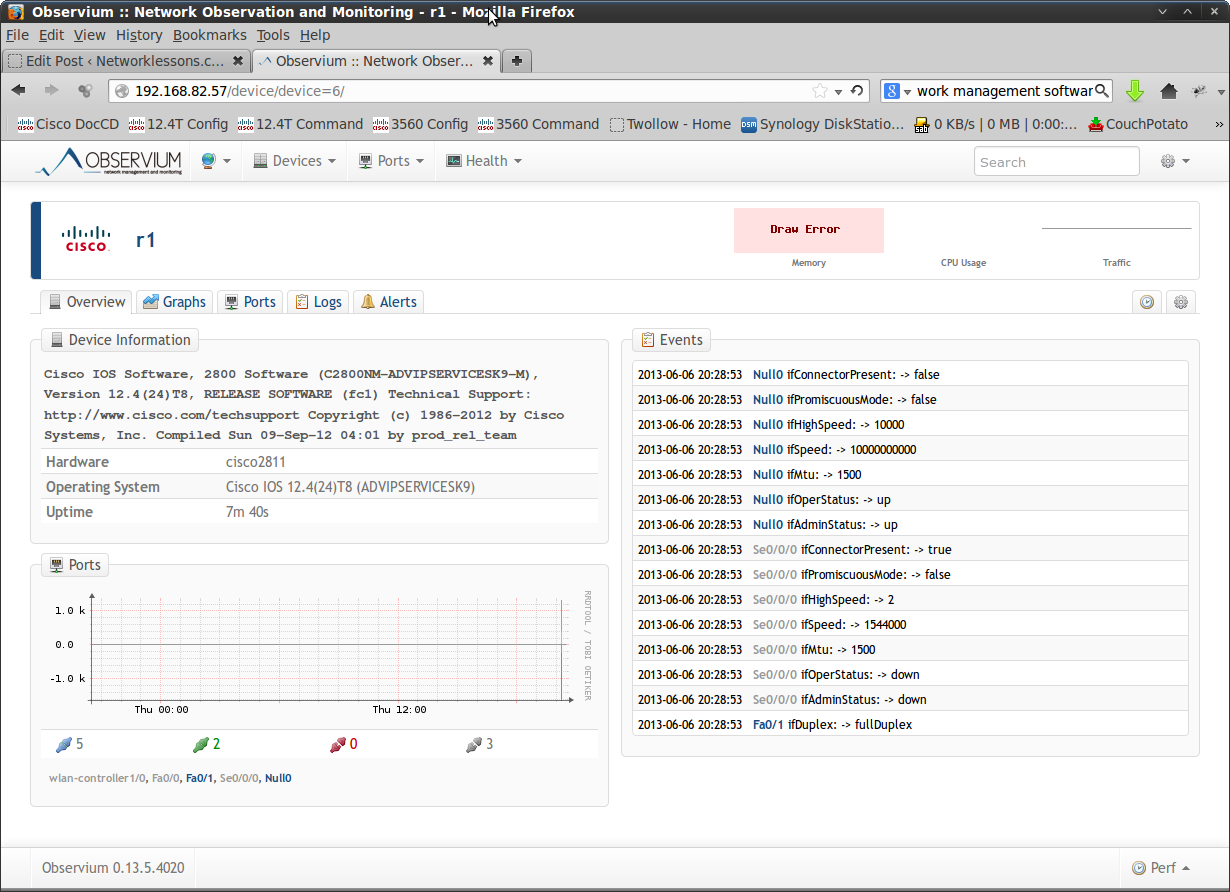
As you can see snmpwalk is able to extract information from my router. We’ll add the router to a NMS now. I’m using Observium which is an excellent free and open source NMS. If your environment has a lot of Cisco or Linux devices then I can highly recommend to give it a try:
observium SNMPv3 add device
We’ll have to specify our security level, username, password, authentication algorithm, encryption key and protocol. Once the router has been added Observium will be able to extract information from it using SNMP:
Observium SNMPv3
Above you can see that Observium is now monitoring our router using SNMPv3. This should give you an idea of how SNMPv3 works and how to configure it on your Cisco devices.
hostname R1
!
snmp-server group MYGROUP v3 priv
snmp-server user MYUSER MYGROUP v3 auth md5 MYPASS123 priv aes 128 MYKEY12
!
end

If you have any questions just leave a comment.

How to configure SNMPv2 on Cisco IOS Router

Besides syslog there is another method to store logging information to an external server. SNMP (Simple Network Management Protocol) can be used to collect statistics from network devices including Cisco routers and switches.
SNMP consists of 2 items:
  • NMS (Network Management System)
  • SNMP Agents
The NMS is the external server where you want to store logging information. The SNMP agents run on the network devices that we want to monitor. The NMS can query a SNMP agent to collect information from the network device. SNMP has multiple versions, the most popular ones being:
SNMP version 3 offers security through authentication and encryption which SNMP version 2c does not. SNMP version 2c however is still pretty common. Let me show you a simple example for SNMP version 2c:
Router(config)#snmp-server community TSHOOT ro
First we’ll have to configure a community string. Think of this as a password that the SNMP agent and NMS have to agree upon. I called mine “TSHOOT”. The ro stands for read-only. SNMP isn’t just for retrieving information; we can also use it to configure our network devices. Let’s continue…
Router(config)#snmp-server location Amsterdam
Router(config)#snmp-server contact info@networklessons.com
These two steps are not required but it’s useful to specify a location and contact. This way you’ll at least know where the device is located whenever you receive information through SNMP. The messages that the SNMP agent sends to the NMS are called SNMP traps. Of course we want to send these to an external server so I’ll configure the IP address of the SNMP server:
Router(config)#snmp-server host 192.168.12.2 version 2c TSHOOT
I also have to specify the SNMP version and the community string. Last but not least, let’s activate the traps:
Router(config)#snmp-server enable traps
If I use the snmp-server enable traps command it will enable all SNMP traps:
Router#show run | include traps
snmp-server enable traps snmp authentication linkdown linkup coldstart warmstart
snmp-server enable traps vrrp
snmp-server enable traps ds1
snmp-server enable traps tty
snmp-server enable traps eigrp
snmp-server enable traps casa
snmp-server enable traps xgcp
snmp-server enable traps bulkstat collection transfer
snmp-server enable traps isdn call-information
snmp-server enable traps isdn layer2
This is only a portion of everything that you’ll see in the running-configuration. This is a great way to test SNMP but on a production network it’s better to take a look at the different traps and only enable the ones you feel are necessary. One of the SNMP traps in the example above is related to EIGRP. If anything happens with the EIGRP routing protocol a SNMP trap will be send towards the SNMP server.
hostname Router
!
snmp-server community TSHOOT ro
snmp-server location Amsterdam
snmp-server contact info@networklessons.com
snmp-server host 192.168.12.2 version 2c TSHOOT
snmp-server enable traps
!
end

If you want to test this with a SNMP server then I can highly recommend to take a look at Observium. They offer a free “community” edition of their network monitoring software that supports many network devices out of the box (Cisco included).

Introduction to SNMP

Imagine you have a large network that has many switches and routers, a dozen servers and hundreds of workstations…wouldn’t it be great if you could monitor all those devices somehow? Using a NMS (Network Management System) it’s possible to monitor all devices in your network. Whenever something bad happens (like an interface that goes down) you will receive an e-mail or text message on your phone so you can respond to it immediately.
Sounds good?
Back in the 80s, some smart folks figured out that we should have something to monitor all IP based network devices. The idea was that most devices like computers, printers, and routers share some characteristics. They all have an interface, an IP address, a hostname, buffers and so on.
They created a database with variables that could be used to monitor different items of network devices and this resulted in SNMP (Simple Network Management Protocol).
SNMP runs on the application layer and consists of a SNMP manager and a SNMP agent. The SNMP manager is the software that is running on a pc or server that will monitor the network devices, the SNMP agent runs on the network device.
SNMP Manager Agent
The database that I just described is called the MIB (Management Information Base) and an object could be the interface status on the router (up or down) or perhaps the CPU load at a certain moment. An object in the MIB is called an OID (Object Identifier).
The SNMP manager will be able to send periodic polls to the router and it will use store this information. This way it’s possible to create graphs to show you the CPU load or interface load from the last 24 hours, week, month or whatever you like.
It’s also possible to configure your network devices through SNMP. This might be useful to configure a large number of switches or routers from your network management system so you don’t have to telnet/ssh into each device separately to make changes.
The packet that we use to poll information is called a SNMP GET message and the packet that is used to write a configuration is a SNMP SET message.

Network Management System

To give you an example of what a NMS looks like, I’ll show you some screenshots of Observium.
Observium is a free SNMP based network monitoring platform which can monitor Cisco, Linux, Windows and some other devices. It’s easy to install so if you never worked with SNMP or monitoring network devices before I can highly recommend giving it a try. You can download it at http://www.observium.org.
Here’s what it looks like:
observium dashboard overview
Above you see an overview of all the devices that our NMS manages. There are two linux devices, two Cisco devices and there’s a VMWare ESXi server. You can see the uptime of all devices.
Let’s take a closer look at one of the Cisco devices:
Observium Cisco Switch
This switch is called “mmcoreswitch01” and it’s a Cisco Catalyst 3560E. It gives us a nice overview of the CPU load, the temperature and the interfaces that are up or down.
Let’s take a closer look at the temperature of this switch:
Observium Cisco Switch Temperature
Here’s the temperature of this switch from the last month. When the temperature exceeds a certain value (let’s say 50 degrees Celcius) then we can tell our NMS to send us an e-mail.
Let’s take a look at an interface of this switch:
Observium cisco switch interface
Here’s an overview of the VLAN 10 interface. You can see how much traffic is sent and received on this interface. We can zoom in one one the graphs if we want:
observium cisco switch interface graph
This gives a nice overview of how much traffic was sent in the last 24 hours of this particular interface.
I hope this gives you an idea of what a NMS looks like and why this might be useful. If you want to take a look at Observium yourself you can use the live demo on their website:

SNMP Messages

All the information that Observium shows us is retrieved by using SNMP GET messages:
SNMP Get Message
The NMS will send SNMP GET messages to request the current state of certain OIDs every few minutes or so. This is great for monitoring the temperature or traffic statistics but the downside of using these SNMP GET messages is that it might take a few minutes for the NMS to discover that an interface is down.
Besides using SNMP GET messages, a SNMP agent can also send SNMP traps. A trap is a notification that it sent immediately as soon as something occurs, for example, an interface that goes down:
SNMP Trap message
As soon as something bad happens (like the interface that goes down) the SNMP agent will send a SNMP trap immediately to the NMS. The NMS will respond by sending you an e-mail, text message or a notification on the screen.
These SNMP trap messages sound like a good idea but there’s one problem with them…there is no acknowledgment for the SNMP trap, so you never know if the trap made it to the NMS or not. SNMP version 3 deals with this problem with an alternative message which uses an acknowledgment called the inform message.

OID (Object Identifier)

We can use a NMS to monitor one of our network devices but how do we exactly know what to monitor? There are so many things we could check for…a single interface on a router has over 20 things we could check: input/output errors, sent/received packets, interface status, and so on. Each of these things to check has a different OID (Object Identifier).
Since there are so many OIDs, the MIB is organized into a hierarchy that looks like a tree. In this tree, you will find a number of branches with OIDs that are based on RFC standards but you will also find some vendor specific variables. Cisco, for example, has variables to monitor EIGRP and other Cisco protocols.
Let me give you an example of this tree by showing where the ‘hostname’ and ‘domainname’ objects are located. These objects can be used to discover the hostname and domainname of the router.
SNMP MIB OID Tree
The tree starts with the “iso” branch and then we drill our way down to org, dod, internet, private, enterprises, cisco, local, lcpu and there we find the hostname and domainname objects. Note that the branches have numbers…instead of typing out the names I can just use the numbers.
1.3.6.1.4.1.9.2.1.3 will be used to get information about the hostname and 1.3.6.1.4.1.9.2.1.4 for the domainname.
The MIB is huge and knowing where to find the right objects can be troublesome, that’s why most NMSes have a nice GUI that lets you select the things you want to monitor without having to worry about the object numbers.
If you want to test SNMP you don’t have to install a NMS, you can use SNMPGET which is a free tool that you can download here:
Here’s an example of SNMPGET where I use a linux host to query a router that has been configured for SNMP:
# snmpget -v2c -c MYSTRING 192.168.1.1 1.3.6.1.4.1.9.2.1.3.0
iso.3.6.1.4.1.9.2.1.3.0 = STRING: "Router"
The community string that I used is MYSTRING, the IP address of the router is 192.168.1.1 and the object I’m interested in is 1.3.6.1.4.1.9.2.1.3. As a result, the router reports its hostname. Here’s another example for the domainname:
# snmpget -v2c -c MYSTRING 192.168.1.1 1.3.6.1.4.1.9.2.1.4.0 
iso.3.6.1.4.1.9.2.1.4.0 = STRING: "localdomain"
I didn’t configure any domainname on this router so the result is “localdomain”.

SNMP Versions

SNMP has three versions:
  • Version 1
  • Version 2c
  • Version 3
Version 1 is so old that it’s very unlikely that you will encounter it on a production network. Version 1 and 2 both use community-strings as a password to authenticate access to the SNMP agent. These community-strings are sent in clear-text which makes SNMP version 1 and 2 very insecure.
SNMP version 3 is a better choice nowadays because it supports username-based authentication instead of a community-string and also supports encryption. There are 3 different security modes:
  • noAuthNoPriv: username authentication but no encryption.
  • authNoPriv: MD5 or SHA authentication but no encryption.
  • authPriv: MD5 or SHA authentication and encryption.
Even if you decide to use SNMP version 3 without authentication or encryption, you can still track activity down to a username.

Conclusion

In this lesson, you have learned how SNMP allows us to monitor our network devices. The only thing left is to configure this on your network devices which I have covered in other lessons:
I hope you enjoyed this lesson. If you have any questions feel free to leave a comment.